Automation in the Surround Editor
Recording Surround Automation
To automate panning movements, first activate the Automation option in the Surround Editor.
Start playback. If you now move the sound source with the mouse during playback, this movement will be recorded.
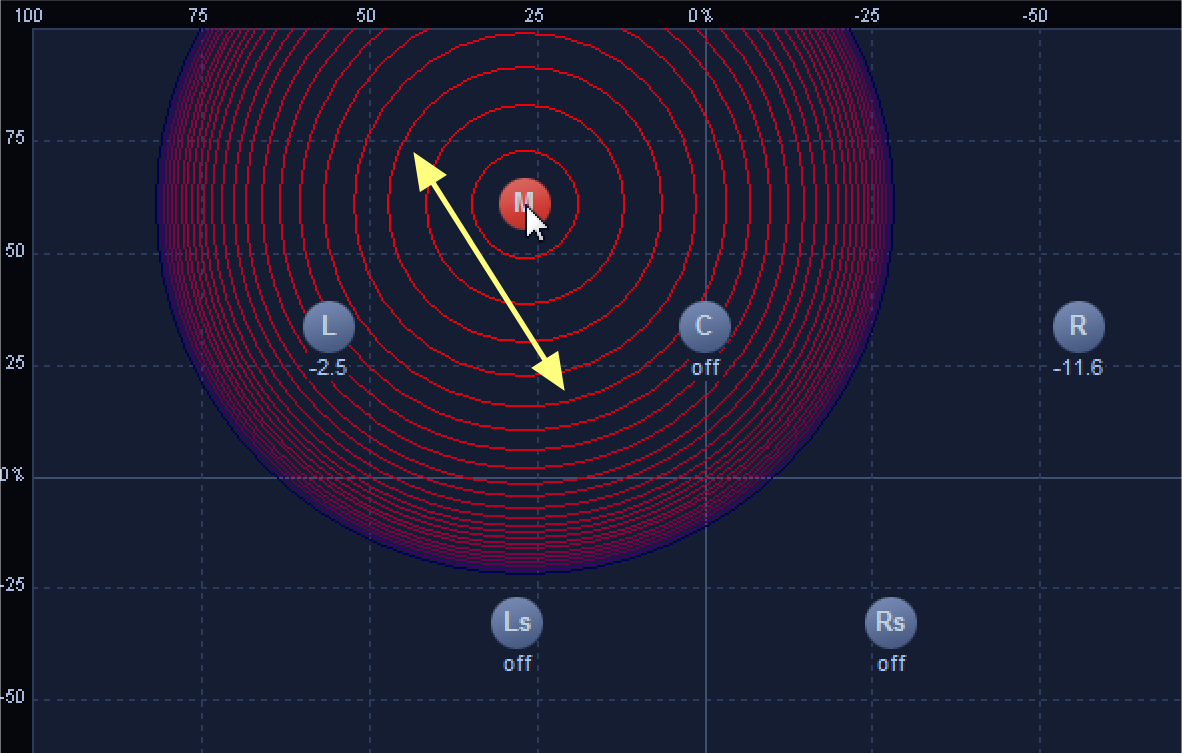
It is displayed in the project window as a curve.
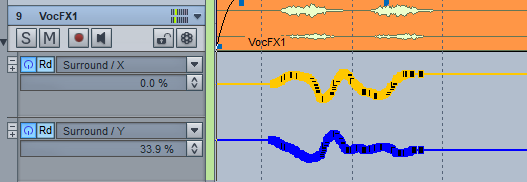
You can edit the automation by using the Automation Draw Mode in the project window.
With object-based panning, i.e. when a single object is separately routed to a surround bus and the Surround Editor has been opened from the Object Editor, the automation is recorded and edited accordingly as an object automation curve.
Drawing Surround Automation Curves
You can also draw in a motion path directly in the Surround Editor. To do this, you must first define the range over whose length the simulated movement extends.
With object-based panning, this time range always corresponds to the entire object. If the automation should only take place over a shorter section, you must split the object.
Now additionally activate the Draw option.
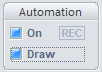
Now draw in the desired motion of the sound source in the Surround Editor.
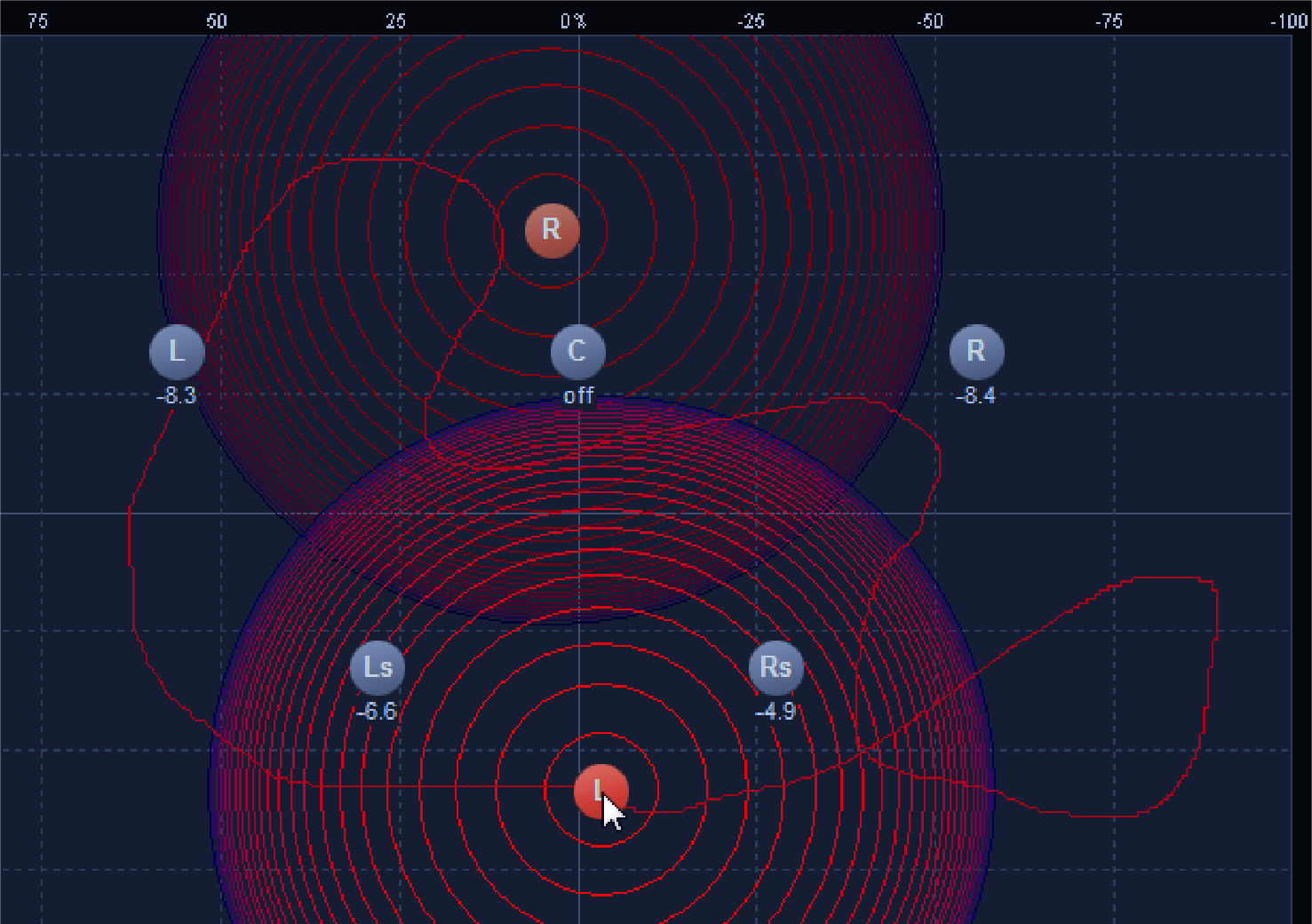
The drawn in motion path is converted into automation curves. The sound source is moved over the selected time period along the complete path at a uniform speed. Here, too, subsequent editing of the curve is possible in the project window.